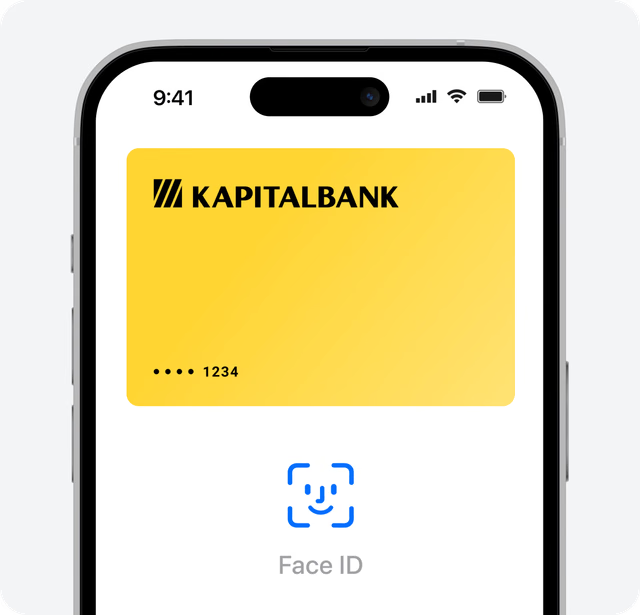
Pay with ease. On all your Apple devices

Apple Pay uses the security features built into your Apple device to help keep your purchases private and secure. Now available with your Kapitalbank card on your iPhone, Apple Watch, iPad and Mac

Works where you shop

Apple Pay is accepted anywhere contactless payments are — at coffee shops, stores, restaurants, and pharmacies

Easy to add

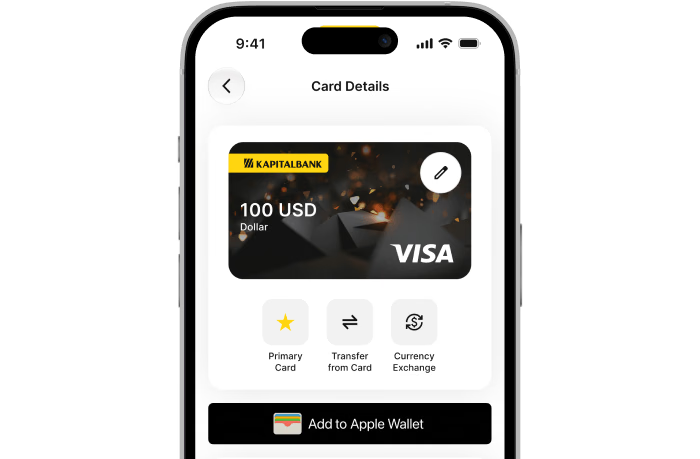
Add your Kapitalbank cards to Apple Wallet right from your iPhone — quickly, easily, and securely via the bank app or Apple Wallet

Easy payments

Double-click the side button on your iPhone, authenticate with Face ID, Touch ID, or your passcode, then hold your device near the reader

Designed to be secure

Apple Pay uses security features built into your Apple device, including Face ID and Touch ID — so only you can pay

How to add a Kapitalbank card

Via the bank app
Via Apple Wallet
Open the KAPITALBANK.Online app
Open your card in app
Tap «Add to Apple Wallet» and follow the instruction to get started
Enter code
Confirmation code will be sent via SMS
Confirm
Your card is ready to use with Apple Pay
Open the KAPITALBANK.Online app

All you need to pay is your Apple device
iPhone

iPhone

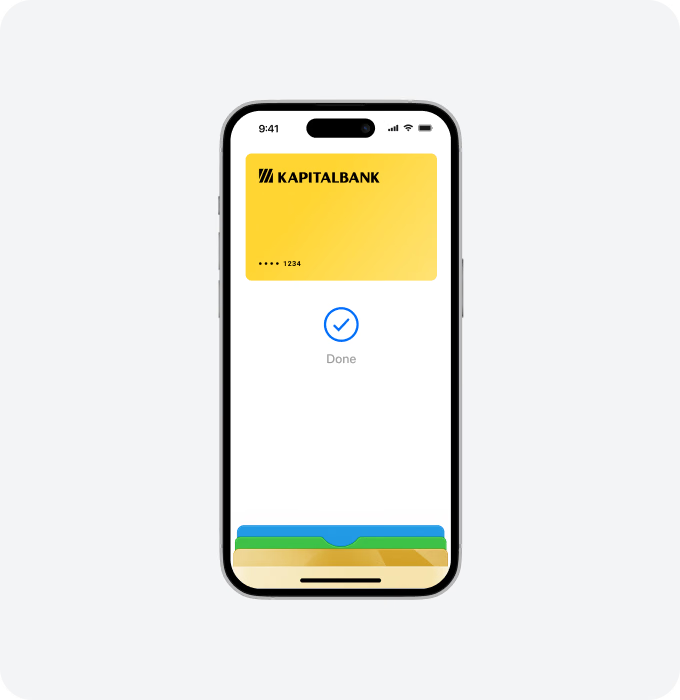
iPhone — In store
Double-click. Face ID. Hold iPhone near reader. Done.

With iPhone, double-click the side button, authenticate with Face ID, Touch ID or your passcode, then hold your device near the reader to pay
Apple Watch

Apple Watch

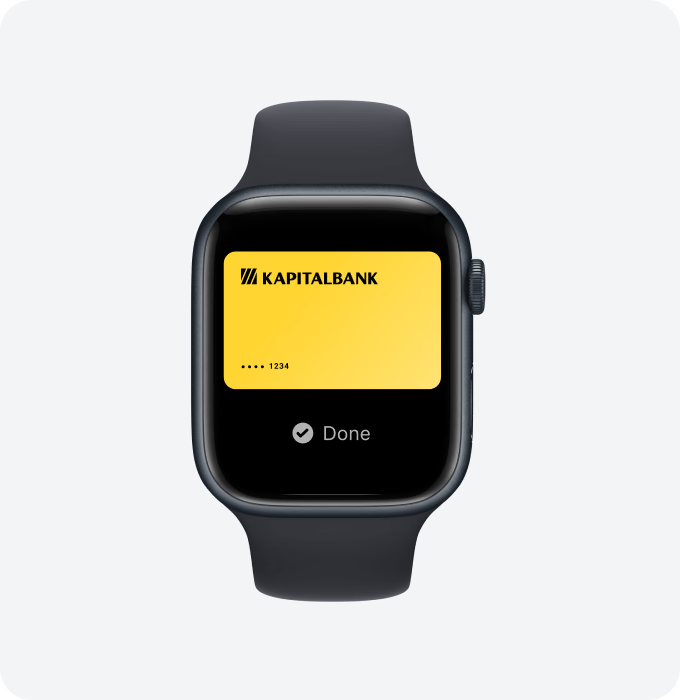
Apple Watch — In store

With Apple Watch, just double-click the side button, then hold your device near the reader to finish your purchase

iPad & Mac

iPad & Mac

Online or in-app

When purchasing online or in-app on iPad or Mac, tap the Pay button, confirm your billing and shipping information, then authenticate with Face ID, Touch ID or your passcode

Use it where you already shop
Shop in person. Online or in apps

Shop in person. Online or in apps

Apple Pay is accepted anywhere contactless payments are:

  • in stores and restaurants

  • in apps and online

Apple Pay. Privacy and security are built in

Pay securely

Your actual card number is never stored on your device or Apple servers. And when you pay, your card number is never shared by Apple with merchants

Pay securely

Extra security

All transactions require Face ID, Touch ID or your passcode on your iPhone, iPad or Mac, and a double click on your Apple Watch
Extra security

Protected by Lost Mode

If you misplace your iPhone, you can quickly mark it as lost on Find My on your Mac, iPad, or online at iCloud.com to suspend your cards in Apple Pay
Protected by Lost Mode

FAQ

How much does it cost to set up and use Apple Pay?
Which Kapitalbank cards support Apple Pay? Can I add multiple Kapitalbank cards?
Do I need an internet connection to pay with Apple Pay?
Can I continue using my physical card after adding it to Apple Pay?
What should I do if my device is lost or stolen?
Why can't I add my card to Apple Wallet?
Where can I get support?